Download a Design, Remix it with AI (DNN)
The fastest way to a finished form is to start from a design somebody already made. Your purchased module can download dozens of premium designs from the online gallery at no extra cost, and the AI Designer can then turn any of them into the form you actually need — keeping the design.
1. Install a design from the online gallery
- Dashboard → New Form, give the form a name.
- Open Template Gallery and switch from Installed to Online gallery. The counter on the right shows how many designs are available to install.
- Search or filter by category, then click a card. MegaForm downloads it server-side, verifies the file against the sha256 published in the catalog, unpacks its artwork into your portal, and marks the card Installed.
- Step through the wizard and press Create Form.
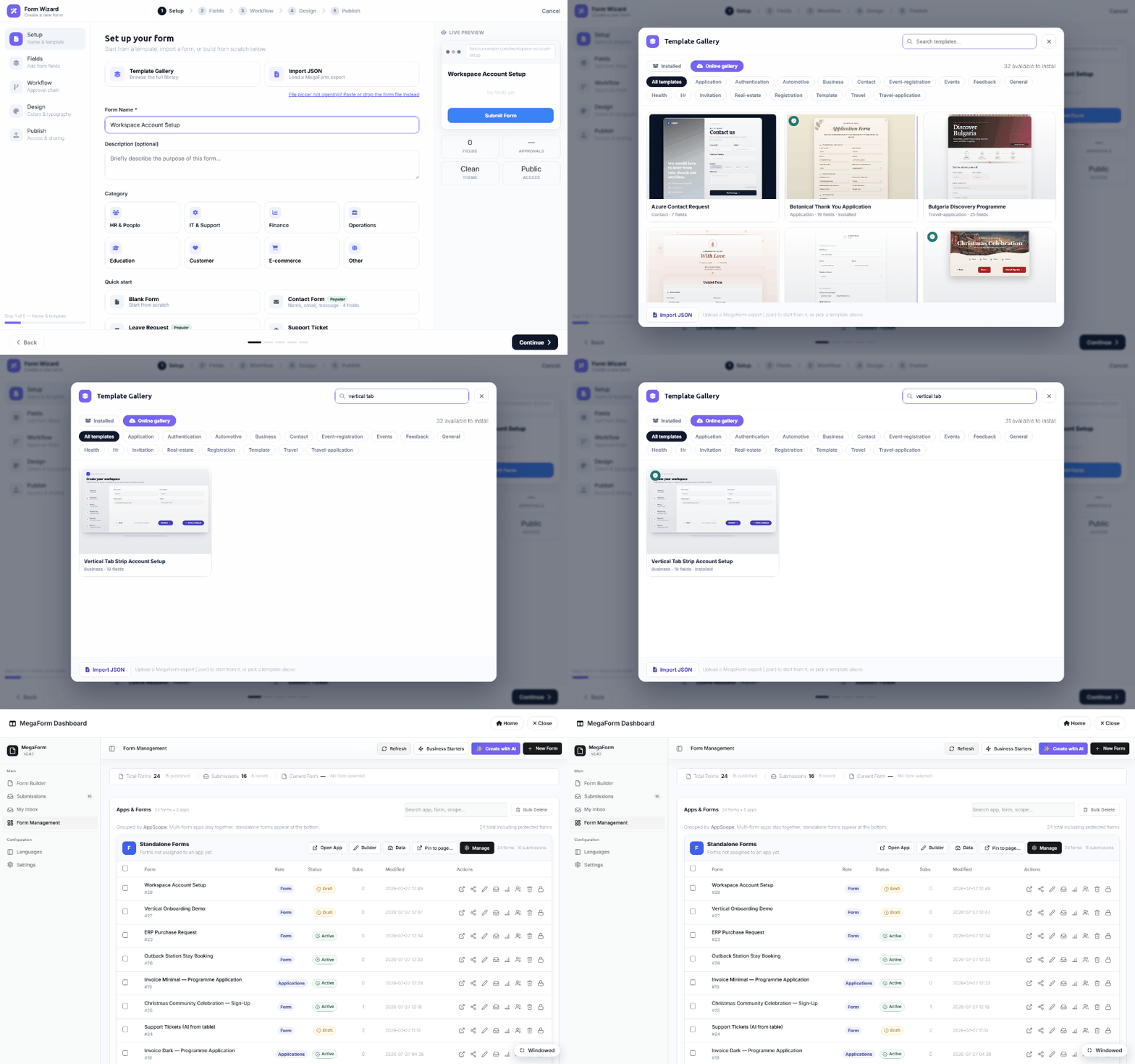
Trial installs may browse and preview the whole catalog; installing is a licensed action. Nothing leaves your server unverified — the browser never talks to the gallery host directly.
2. Remix it with the AI Designer
The downloaded design brings its own shell (hero, step rail, cards). Open the form in the Builder → AI Designer and describe the form you want instead. Ask it to keep the design:
Turn this account setup into an IT equipment request form. Replace the billing and security fields with: Asset type (dropdown: Laptop, Monitor, Phone, Docking station), Quantity, Needed by date, Business justification, and Approver email. Keep the existing design and steps.
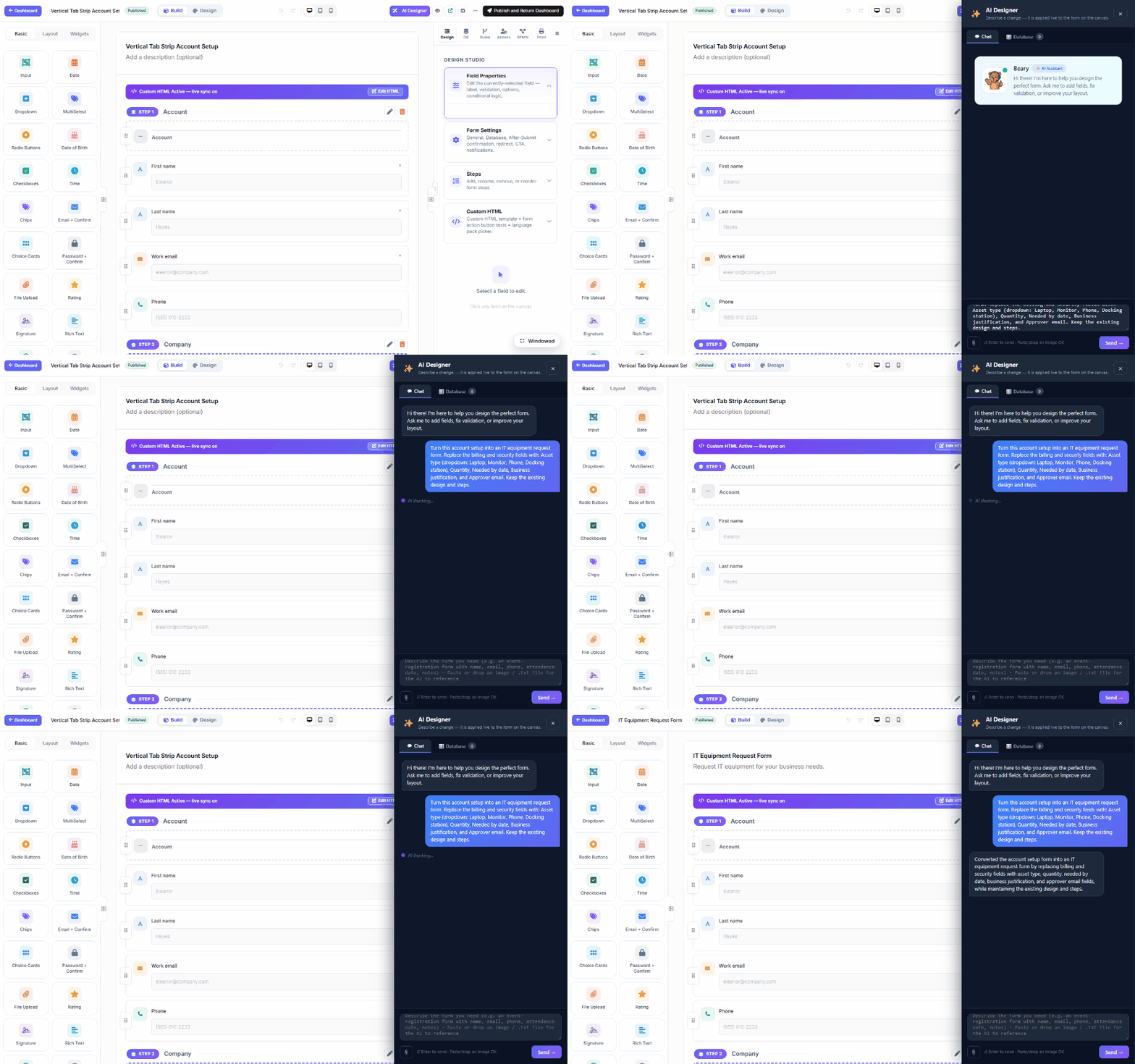
The assistant edits fields, not the shell: the tab-strip layout, colours and step chrome are untouched, while the fields — and the step titles that describe them — become yours.
3. View the working form
Publish, and the form runs with the same design it was downloaded with:
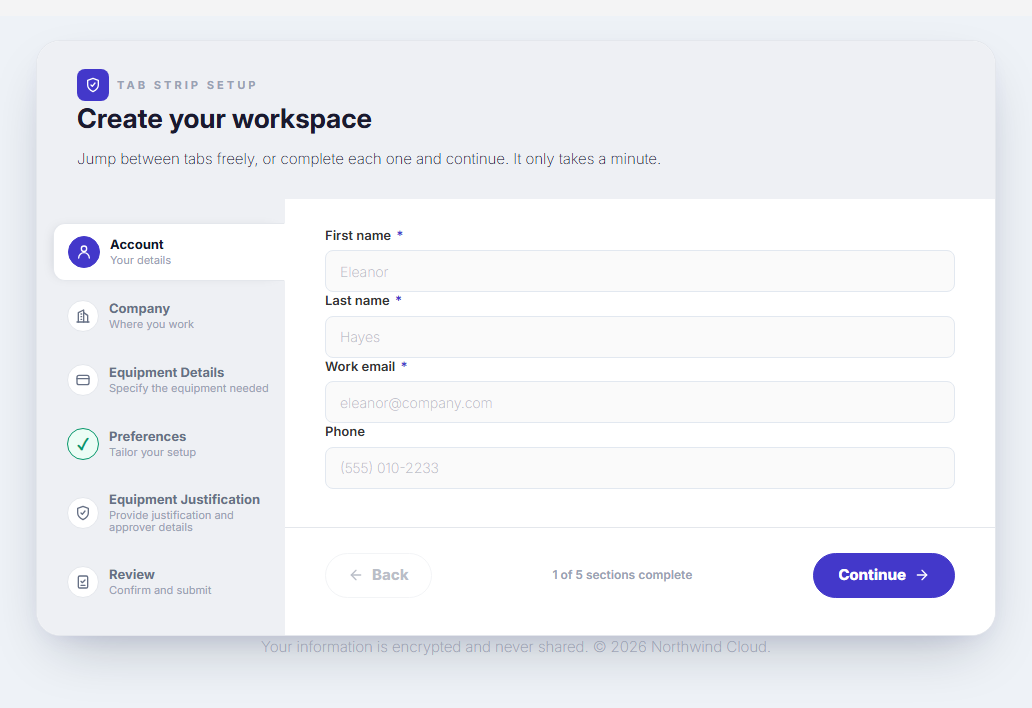
Tips
- Name the fields you want. "Add equipment fields" gives you a guess; listing the fields and their types gives you the form.
- Say "keep the existing design and steps" when you remix a premium template — that instruction is what keeps the assistant on the shell's rails.
- Re-run the prompt to refine. Each message is applied live to the canvas; Save is what persists it.
- Designs you install stay in your portal's template list, so the next form can start from the same design without downloading again.