Create a Form with AI (DNN)
Instead of dragging fields one by one, you can describe the form you want and let MegaForm's assistant build it for you — right from the Dashboard, with a live preview you can save and run.
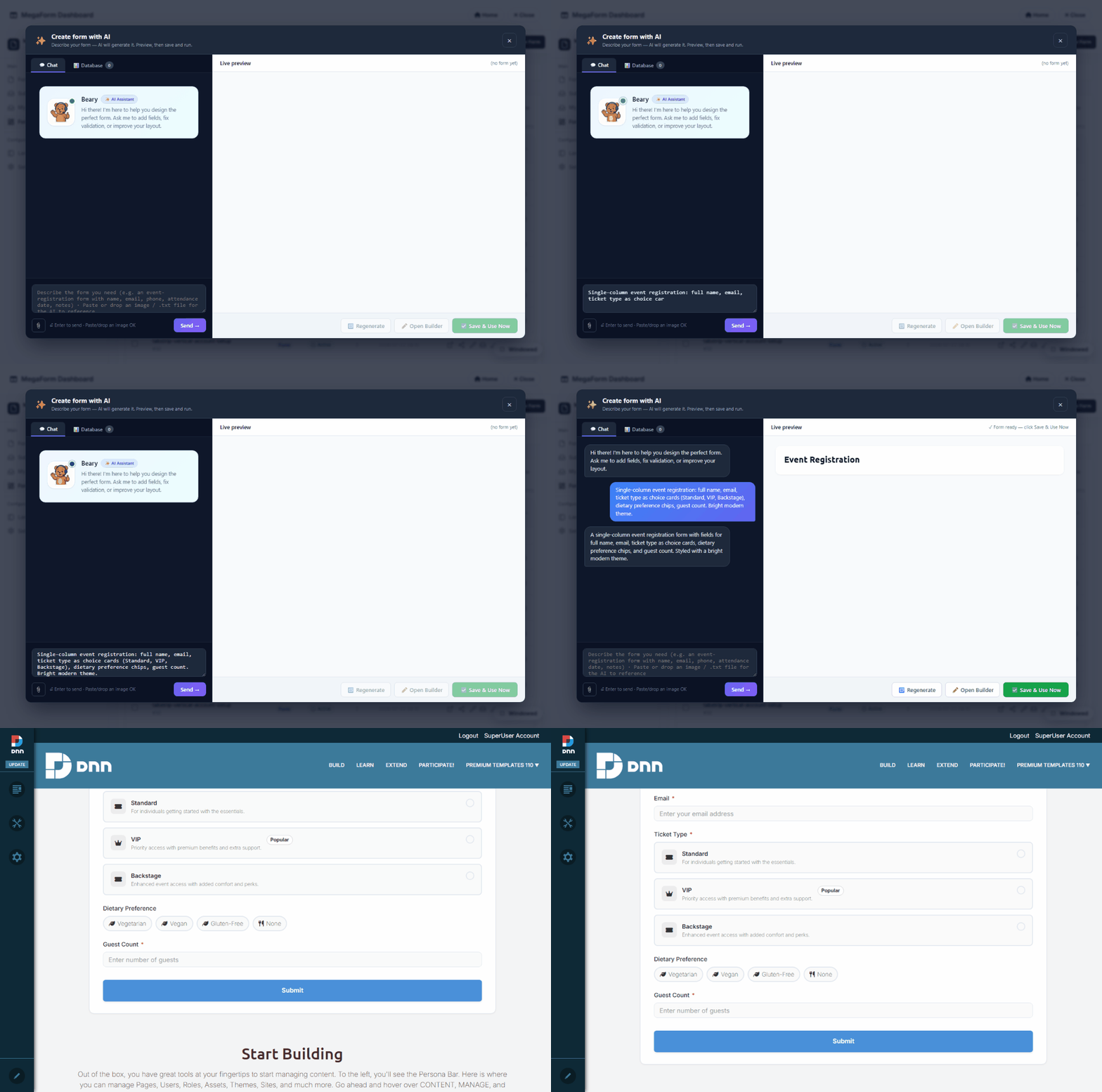
The flow
- Open the Form Dashboard and click ✨ Create with AI.
- The Create form with AI window opens — a chat on the left (the Beary assistant) and a Live preview on the right.
- Describe the form in plain language, for example:
Premium event registration: name, email, ticket type as choice cards (Standard, VIP, Backstage), dietary preference as chips, and number of guests.
- Press Send (or Enter). The assistant generates the schema and renders it in the Live preview as you watch.
- Refine by chatting further ("add a phone field", "make ticket type required", "use a two-column layout"), click 🔄 Regenerate to try again, or ✏️ Open Builder to fine-tune by hand.
- Click ✅ Save & Use Now to persist the form and start collecting submissions.
What the assistant produces
The generated form is a normal MegaForm — so it can use the full widget set, not just plain inputs: choice cards, chips, dropdowns, date pickers, file uploads, multi-step layouts and a theme. Ask for those explicitly ("ticket type as choice cards", "dietary preference as chips") and they appear in the preview as premium controls, ready to theme in the Form Builder.
You can also bind it to a table
Switch to the Database tab inside the assistant to point the new form at one of your SQL tables (same allow-listed connections as the builder's DB tab) — the AI maps the form's fields to the table's columns so each submission writes a row.
Requirements
- AI Settings must have an API key. Configure your provider once under Configuring the AI Assistant — without a key the assistant replies "No API key configured. Open AI Settings." and cannot generate.
- Host/Administrator access to the Dashboard.
For writing effective prompts (field types, layouts, validation, themes), see AI Prompts for Form Design. To edit an existing form by chatting instead of creating a new one, use the in-builder AI Form Designer.