Module settings & theme (DNN)
Settings on the admin toolbar opens the module's configuration popup — three tabs that control what this page shows and how it looks, without touching the form itself.
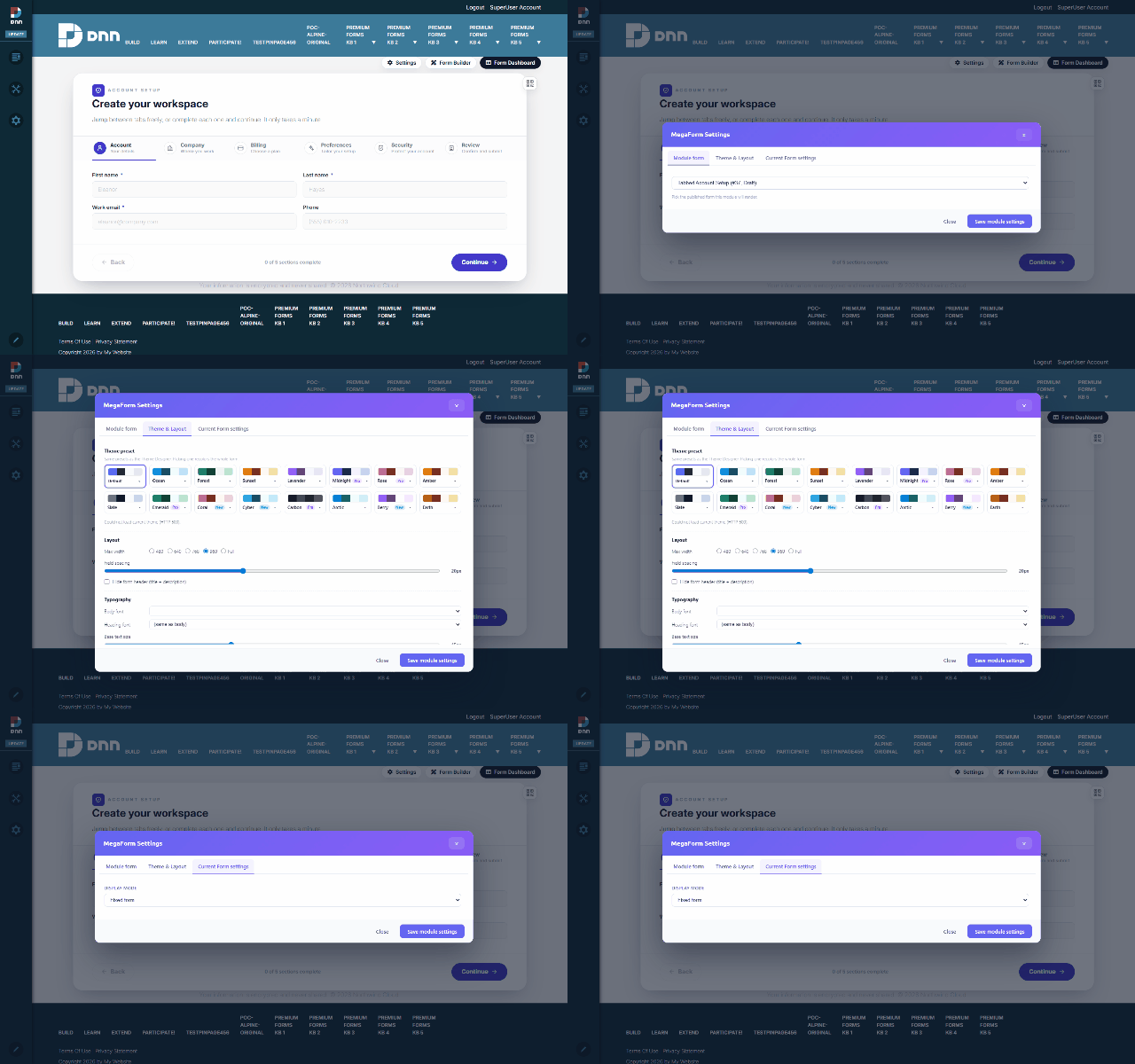
The three tabs
| Tab | What it holds |
|---|---|
| Module form | Which published form this module displays (same picker as Module View). |
| Theme & Layout | Module-level look: a theme preset row (Default, Ocean, Forest, Sunset, Lavender, Midnight, Rose, Amber, Slate, Emerald, Coral, Cyber, Carbon, Arctic, Berry, Earth — one click recolors the whole form), Layout (max width 480→Full, field spacing slider, hide form header) and Typography (body/heading font, base text size). |
| Current Form settings | A shortcut into the FORM's own settings (the same ones the builder's Form Settings panel edits). |
Save module settings applies to THIS module instance — the same form on another page can look completely different.
Theme layers
Styling is layered, most-specific wins:
- Form theme — designed with the form in the builder's Design tab / Theme Designer.
- Module Theme & Layout (this popup) — per-page overrides: presets + layout + typography.
- Update Theme (toolbar button) — re-syncs the module's cached style from the form's current theme after you restyle the form.
Presets here are the same set as the Theme Designer's, so a page override and a form-level design stay visually consistent.