Module setup — fixed form, dashboard page, inbox page (DNN)
One MegaForm module instance shows one surface at a time. The same module that renders a form on a public page can, on another page, BE the admin dashboard — or a "My Inbox" page for approvers. A typical site sets up three pages:
| Page | Module mode | Who sees it |
|---|---|---|
| Any content page | Fixed form (default) | Visitors — the form itself |
e.g. /megaform-admin |
Admin dashboard | Staff — forms, submissions, reports |
e.g. /my-inbox |
My Inbox | Approvers — their assigned workflow tasks |
1. Fixed form — what visitors see
Module View (admin toolbar) binds the form to this page and picks how it displays:
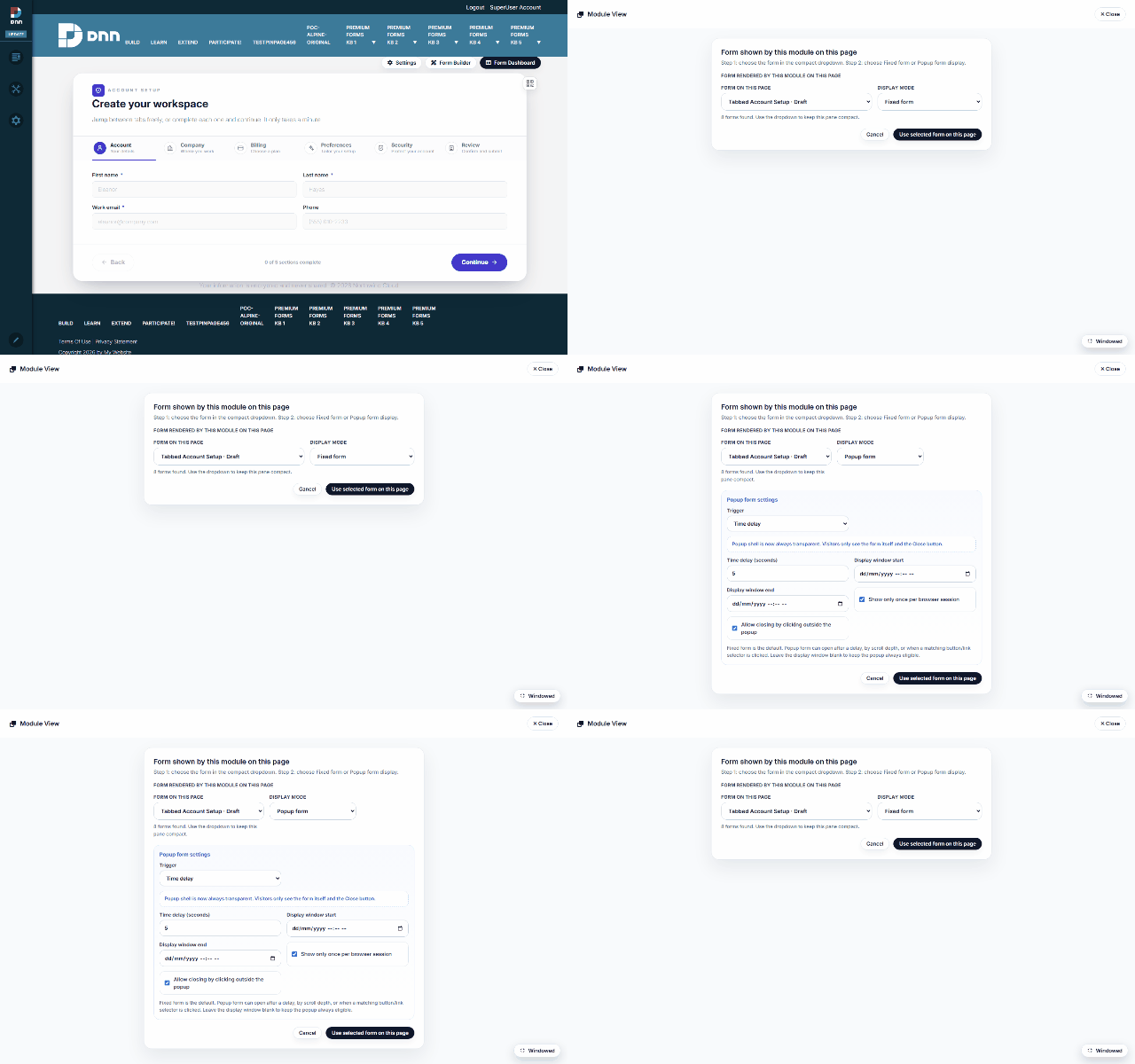
- Fixed form — renders inline in the module's pane (what the previous walkthrough set up).
- Popup form — the page stays clean and the form opens as a popup on a trigger: a time delay, a scroll depth, or a click on an element you name. Popup timing, border style and show-once-per-session live in the same pane.
2. A dashboard page
Create a normal DNN page (e.g. MegaForm Admin), add the MegaForm module, and switch the module's mode to Admin dashboard. That page now IS the dashboard — no overlay, no toolbar hopping; bookmark it, protect it with DNN page permissions for staff roles:
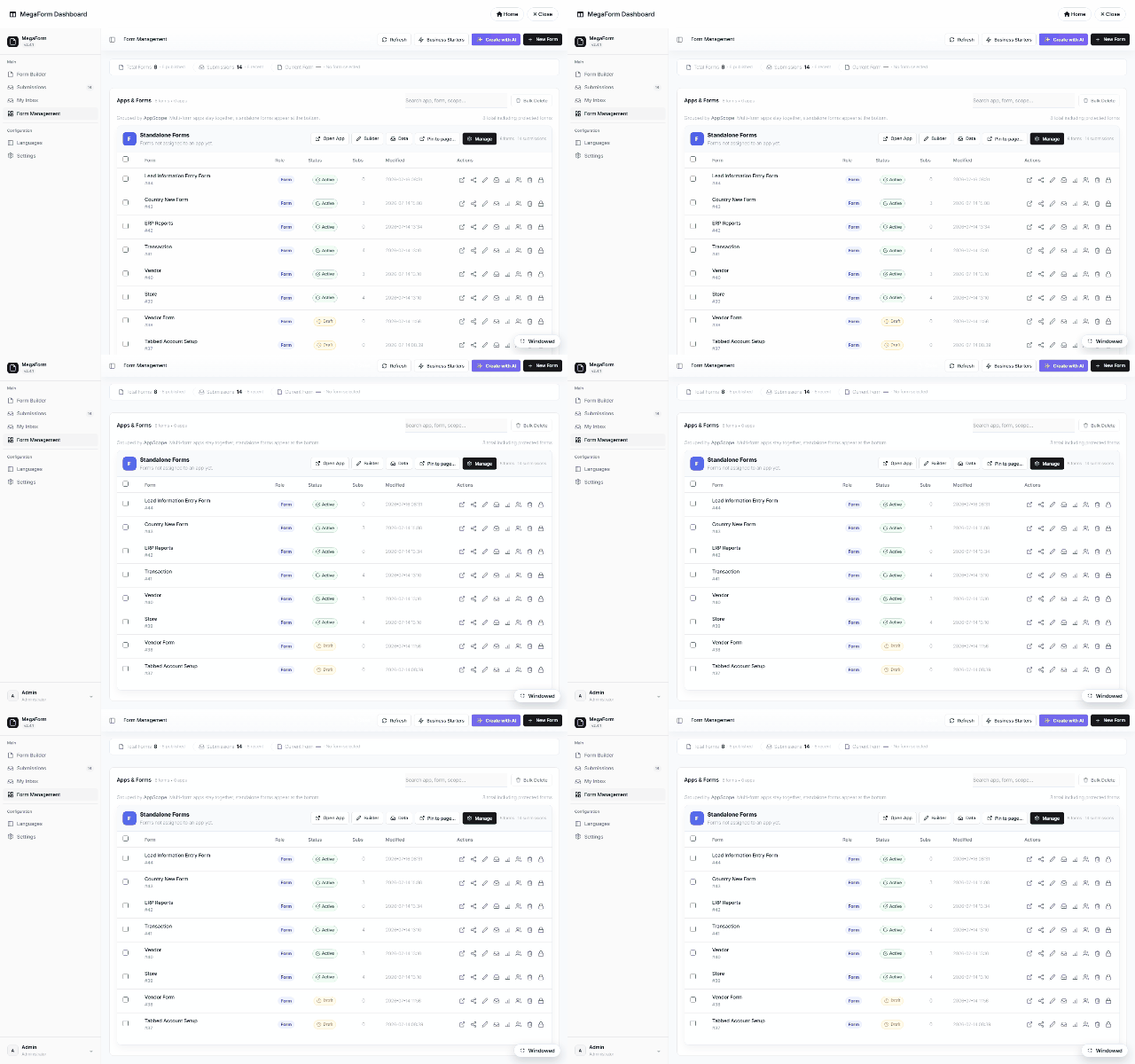
Everything the admin overlay offers is here: Form Builder, Submissions, My Inbox, Form Management, Configuration, Languages and Settings — see Submissions & My Inbox and Creating Forms.
Windowed ⇄ Full Screen
The dashboard runs inside the module's pane by default (Windowed) — the DNN page header, menu and skin stay visible around it. For more working room, use the Full Screen toggle in the dashboard's top bar: the admin surface expands to fill the whole browser viewport (page chrome hidden), which is the comfortable mode for the Form Builder and the submissions grid. Toggle back to Windowed to see the module in the context of its DNN page again. The choice is per-user and is remembered, so each staff member gets the working style they prefer without changing the page for anyone else.
Tip: reserve the dashboard page for staff with DNN page-view permissions for your admin role only — the dashboard exposes every form and submission on the portal.
3. An inbox page for approvers
Same trick with My Inbox mode: a page whose module shows each signed-in user THEIR workflow tasks — assigned approvals, forwarded items, completed history — grouped by form:
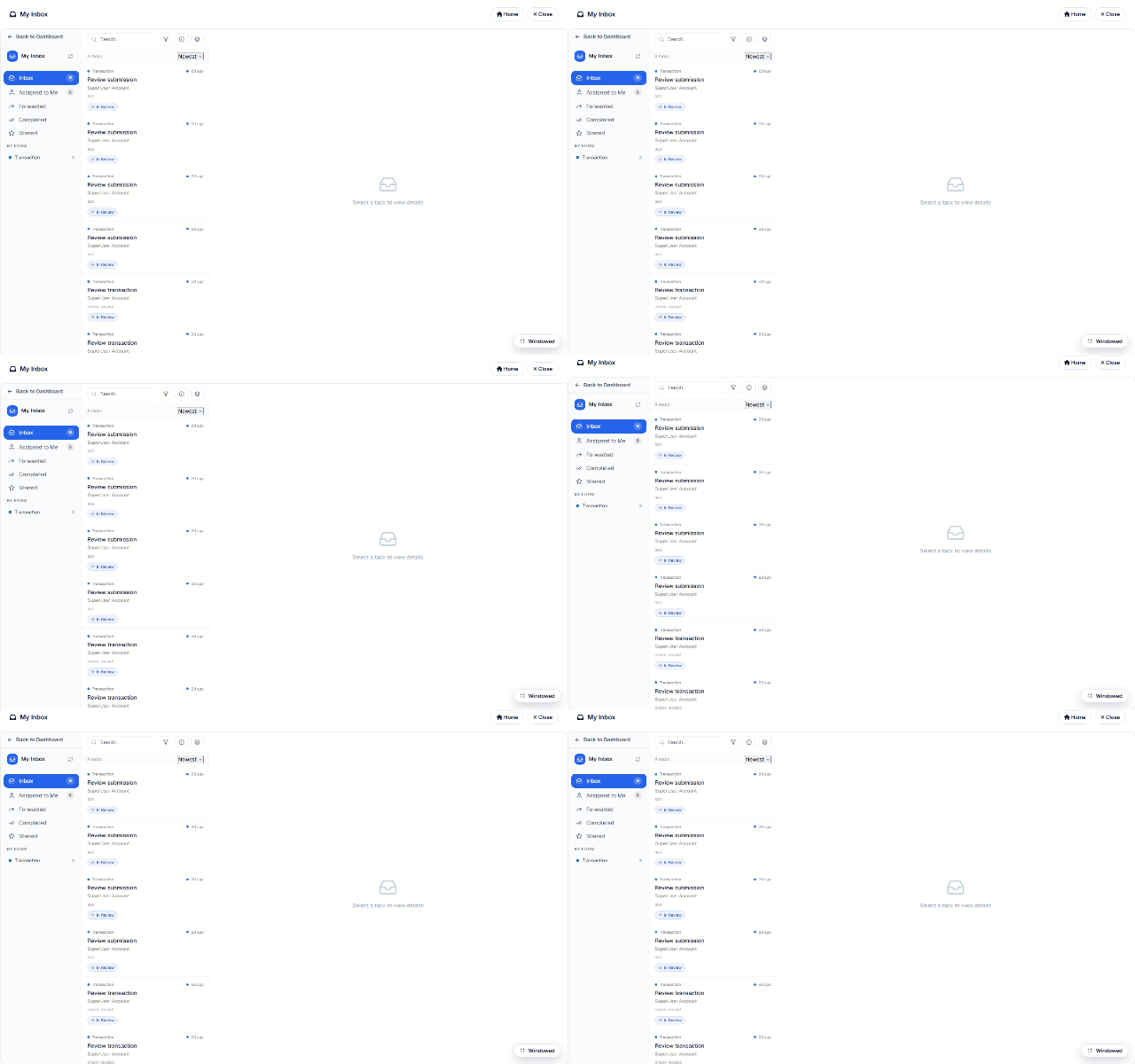
Give the page a friendly URL (/my-inbox), grant it to the approver roles, and your reviewers
never need to see the admin dashboard at all. How tasks get INTO the inbox is the workflow's
job — see Approval Workflows & Inbox.
Where the mode lives
The mode is a per-module setting (MegaForm_ModuleMode: render | admin_dashboard |
myinbox) — so one site can host any number of form pages, one dashboard page and one inbox
page, all from the same installed module.