From a blank page to a working form (DNN)
MegaForm on DNN is one module. Drop it on any DNN page and the page goes from empty to a working, submittable form in under a minute — no code, no page templates.
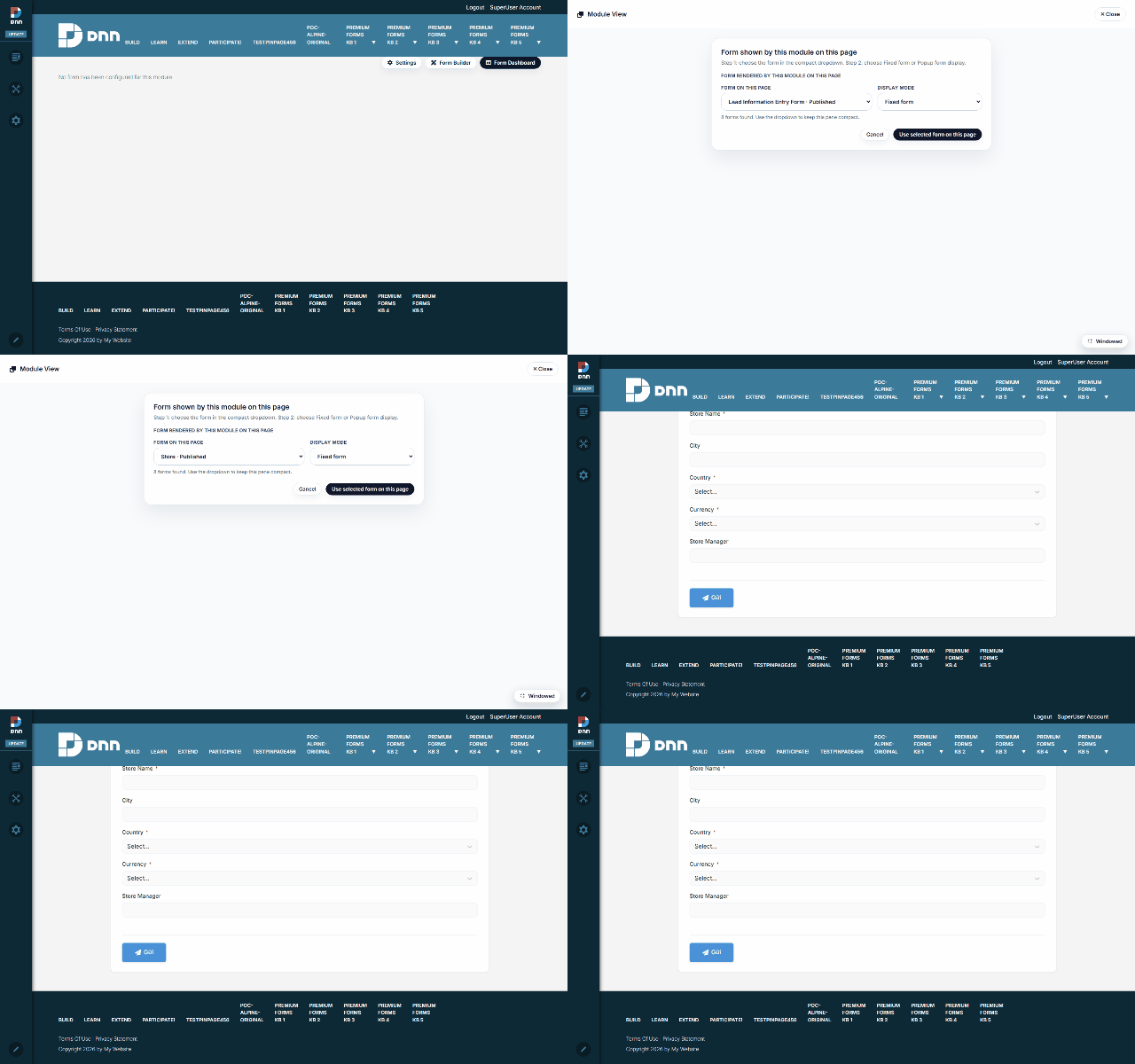
1. Add the module
Add MegaForm to a page the usual DNN way (Edit page → Add module → MegaForm). Until a form is chosen the module renders a single line — “No form has been configured for this module.” — plus, for admins, the MegaForm toolbar in the top-right corner:
| Toolbar button | What it opens |
|---|---|
| Module View | What THIS module instance displays — the form picker below |
| Settings | Module-level settings & theme (see Module Settings & Theme) |
| Form Builder | The full form designer (see Form Builder) |
| Form Dashboard | The admin dashboard — forms, submissions, reports |
Visitors see nothing of this — the toolbar and the unconfigured notice are admin-only.
2. Pick the form — Module View
Module View is where you bind a form to this page. The popup has:
- a display mode — Fixed form (render inline on the page) or Popup form (open on a trigger: time delay, scroll depth, or click — see Module Settings & Theme);
- the form picker — every form on the portal with its status (Store · Published, Contact Form · Published, …);
- Use selected form on this page — applies the choice to this module instance only.
Pick a form, apply, done. The same form can be bound on any number of pages, and each module instance keeps its own display settings.
3. The form is live
The page now renders the chosen form — fields, validation, uploads and all. Submissions land in the Form Dashboard (and anywhere else the form is configured to deliver: email, webhooks, or your own SQL tables).
Where to go next:
- No forms yet? Build one in minutes — Creating Forms, or start from a ready-made template.
- One module shows one surface at a time. Beyond the form itself, the same module can serve a whole admin Dashboard page or a My Inbox page for approvers — set up in Module setup: fixed form, dashboard & inbox pages.